It’s 2026, and Android still doesn’t have some basic features like cutting off internet access for certain apps. Now there are third-party apps that make this sort of firewall possible on Android. However, they come with one big trade-off: they need to run constantly in the background as a VPN tunnel.
For one, you cannot use an actual VPN in parallel if you’re running a firewall like this. Also, it constantly runs in the background and drains the battery. The tunnel creates a persistent notification, too, which cannot be removed while the firewall is running. Let me show a way to firewall apps without this VPN overhead.
The ingredients
Just install these two apps
You’ll need two apps to make this work.
- ShizuWall
- Shizuku
They’re both open-source and free. You can install Shizuku from the Play Store. You can get ShizuWall from the official GitHub repo. Just scroll down to the releases tab, and download the APK file. Then install the app using the APK file you just downloaded.
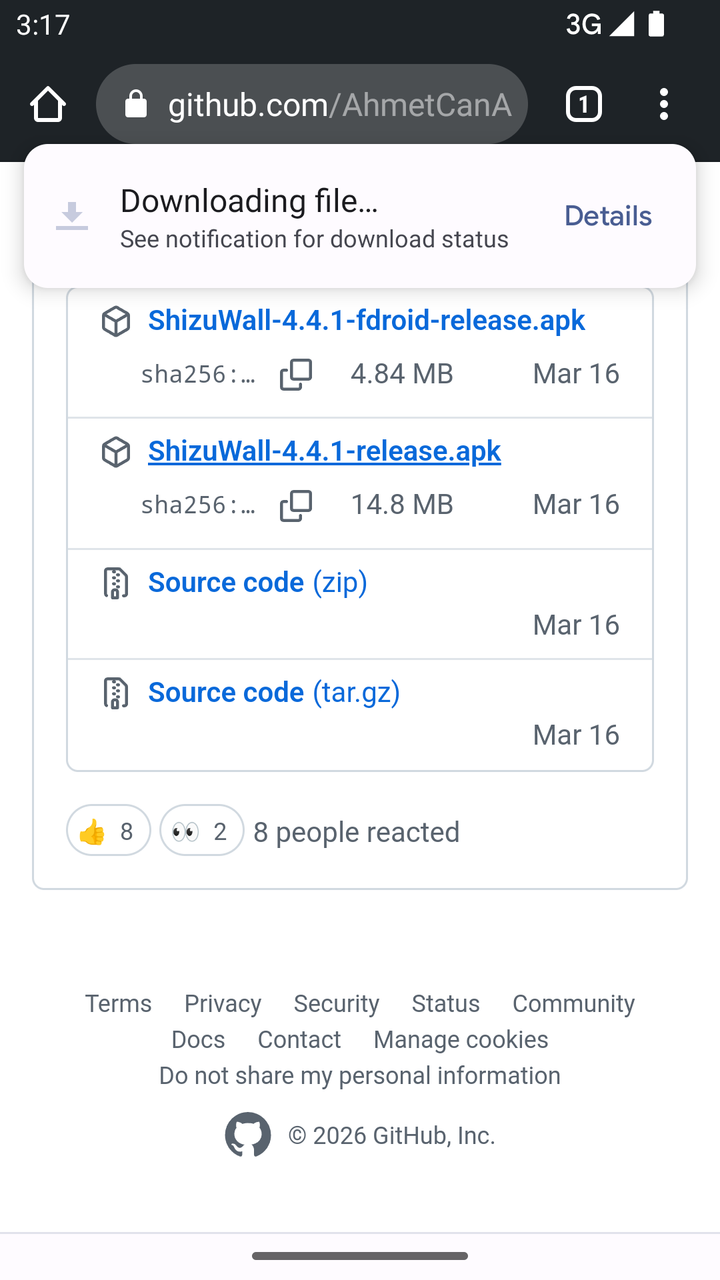
ShizuWall is available on the Play Store as well, but the Play Store version is paid. Only install that version if you want to support the developer.
ShizuWall is a free and open-source app that lets you block your selected apps from accessing the internet without running in the background. Instead of relying on a VPN tunnel, ShizuWall firewall apps with native Android features, using Shizuku to gain elevated system privileges.
ADB, or Android Debug Bridge is a command-line interface that lets developers interact with the Android OS. Since it’s meant for development and debugging, this environment provides elevated privileges that are usually off-limits to the standard Android user. However, you need to connect the phone with a PC over Wi-Fi or USB cable to access ADB. Shizuku uses this ADB interface to grant apps those elevated permissions (and you don’t even need a PC for it).
Set up Shizuku
This free app will grant elevated permissions to the firewall
To set up Shizuku, you need to connect to a Wi-Fi network and enable Developer Options. Under Developer Options, look for the Wireless Debugging toggle. Enable wireless debugging.
Now open Shizuku and tap Pairing, you’ll see a notification pop-up from Shizuku. Go back to Developer Options, but instead of tapping the toggle, tap the menu item Wireless Debugging. Select Pair with 6-digit code to generate a random code. Enter this code into the Shizuku notification that appeared earlier.
You should see a “paired successfully” message from Shizuku.
Then tap Start to start the Shizuku server.
Setting up ShizuWall
Start the firewall to block apps from the internet
Now let’s open ShizuWall. Select Shizuku when it asks to pick from the list of working modes. Then tap Allow access to Shizuku to grant it those elevated permissions. You’ll see all your installed apps in a list here.
Tap the gear icon on the search bar to open the ShizuWall settings. Toggle on Skip enable confirmation. Under Firewall Mode, you’ll see four options: Default, Adaptive, Whitelist, and Smart Foreground.
The default mode simply blocks the apps you’ve preselected and enforces the firewall blocking. In Adaptive mode, you can block more apps without disabling and re-enabling the firewall. Whitelist mode blocks all apps by default, only allowing the apps you choose to connect to the internet. Smart Foreground blocks all apps except for the one you’re currently using.
Now go back to the list of apps and select the ones you want to firewall.
Typically, you’ll want to choose apps that shouldn’t have internet access in the first place (like the keyboard app) and apps which only use their internet access to throw up annoying ad walls.
Tap the Firewall toggle at the top to enable the firewall you’ve configured. It’ll block the apps without a constant service running in the background.
Once you enable the firewall, these apps will be cut off from the internet until you open ShizuWall again and grant them access again. You can now close Shizuku and ShizuWall both.
Some pro tips
What to do if you run into an error
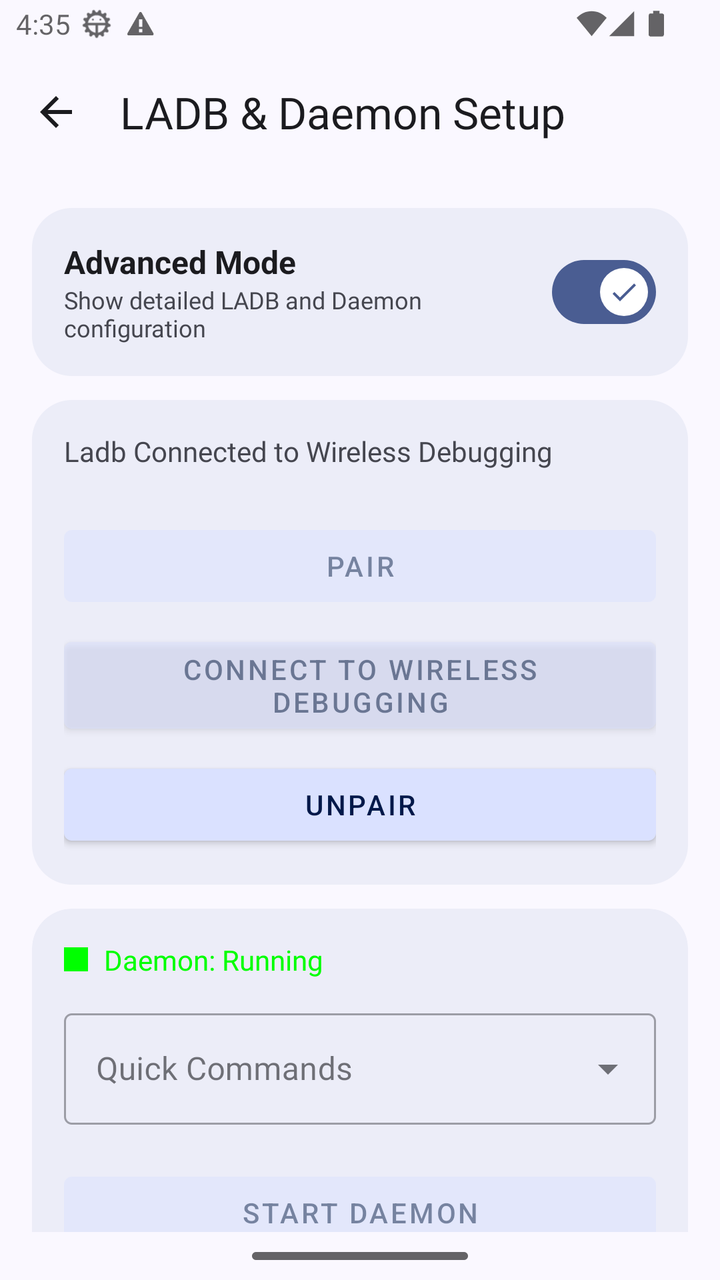
If you get any errors from ShizuWall using Shizuku, consider switching to the LABD & Daemon setup. However, this process will create a background service (a daemon) that runs constantly (not a VPN though). Go to ShizuWall settings and tap Pair under LABD & Daemon setup. You’ll want to open Developer Options > Wireless Debugging and pair LABD with a 6-digit code just like you did for Shizuku. ShizuWall should now show up under the list of paired devices. Then hit Connect to wireless debugging and wait for the daemon to become active.


7/10
- SoC
-
MediaTek Dimensity 7400X
- RAM
-
8GB
- Storage
-
256GB
- Battery
-
4,500mAh
You can use a VPN service and the firewall at the same time.
Until Google adds a native firewall feature to Android, ShizuWall is the closest you can get to a native firewall that doesn’t require a VPN tunnel. However, if you don’t mind a persistent VPN tunnel, you can use this app to block internet access to certain apps.