Just got a new Android smartphone for the holidays? If it’s your first one, it could be a little intimidating, so to get you started, here are a few apps you should immediately install or set up on a new Android device. Alternatively, if you’re not already using these apps, it might be time to give them a shot!
Use a password manager!!
We all have a ton of online accounts, and the best way to both manage and protect that data is with a password manager. Password managers usually work by encrypting your data behind a “Master Password” or some other means while allowing you to organize that data by the site it works with or in folders.
Using a password manager is one of the most important but also one of the easiest ways to enhance your online security. By using one of these, not only will you not lose or forget your passwords, but you’ll be able to use stronger passwords since you don’t need to be able to remember them by memory.
One of our favorite password managers is 1Password, with affordable pricing, excellent security that uses both a master password and a “Secret Key,” and an easy-to-use app.
DashLane works similarly but also has an option to automatically change your passwords for you and some free functionality, too. If you really need a completely free option, though, Bitwarden is a great option. ProtonPass is a newer option that also integrates with ProtonMail, a secure email client. It also includes a neat feature where you can create email address aliases to avoid spam. The password manager itself is free, but some of the features require a subscription. LastPass isn’t our first recommendation due to some security incidents in recent years and adjustments that make the free tier a hassle to use, but it’s still better than nothing.
And of course, Google has its own password manager built into Android phones and the Chrome browser. It works pretty well! The only downside is that it’s usually good to separate your password manager from your crucial online accounts, Google absolutely being one of those, but this is again way better than doing nothing.
Up your messaging game
Google Messages (RCS)
In the US, at least, messaging has traditionally been a sore point of Android smartphones. Thankfully, Google has been hard at work trying to fix that in recent months, and now, the solution known as RCS (Rich Communication Services) is available to every Android smartphone in the world at this point.
How can you get RCS on your device, and more importantly, what’s the benefit? The benefit, firstly, is that RCS is much more capable than SMS/MMS. Pictures can be sent in higher quality, typing indicators, and more all arrive with RCS. Group chats also get a huge upgrade too. On top of that, RCS chats are now encrypted to offer better security.
Basically, RCS is like Apple’s iMessage, but for Android phones.
And, as of the past year, RCS is live by default on most iPhones, meaning RCS “just works” between millions of users.
To get RCS on your Android phone, all you need to do is download Google Messages.
The free app is an SMS app at heart, but it can also enable RCS messaging on any carrier and any Android smartphone too. Simply download, set it as your default SMS app, and wait for the prompt to turn on RCS. We’ve got a more detailed tutorial on the process as well, plus some tips and tricks on the best features you should turn on. RCS via Google Messages is end-to-end encrypted for both 1-on-1 messages and group chats.
Beeper: Everything everywhere all at once
The Beeper app, developed by the founder of Pebble and currently owned by the company behind WordPress, is a hub for all of your messaging apps. By connecting primarily through local bridges on your phone, Beeper can pull WhatsApp, Google Messages, Telegram, Slack, Twitter/X DMs, and so many more apps into a single app. It’s helpful for both connecting to your messaging apps through a computer, tablet, or secondary device, or just putting all of your conversations in a single place. Beeper is free to use, with some more advanced features available in a subscription.
Telegram, Signal, & other messaging apps
If you want an app for even better messaging, you can go beyond the RCS and typical SMS. Telegram is one of our favorite messaging apps, and it works a lot like the super popular WhatsApp. Unlike that app, though, Telegram works easily on multiple smartphones or tablets at one time and backs up all of your messages automatically. Plus, everything is still encrypted, and you have both voice and video calls available. The app is always getting better through updates and has improved its messaging experience greatly alongside adding a more robust video call app, too.
Discord is another great messaging alternative, offering private messages as well as “servers” to host a few friends or hundreds, all with rooms and chat admins. It’s a great experience and one that’s especially excellent for gamers.
Meanwhile, Signal is an even more privacy-focused messaging app that became especially popular when Meta-owned WhatsApp was under fire for new privacy policies. Of course, we’d be remiss if we didn’t mention the popularity of WhatsApp and Facebook Messenger both globally and in the US. While many are uncomfortable with Meta, these apps are still far better than the usual SMS you’d otherwise be using. Facebook Messenger now even defaults to end-to-end encryption, which is a big deal!
Staying connected
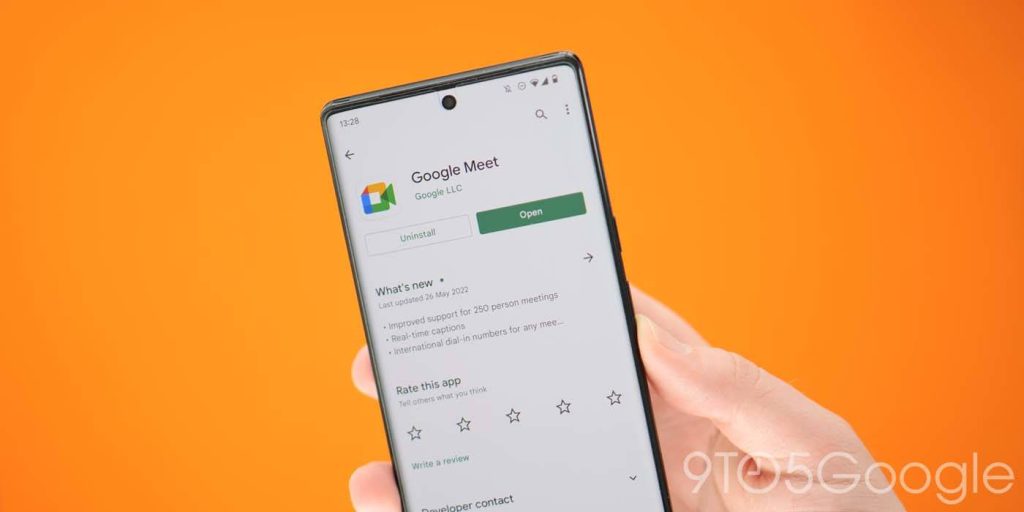
Google Meet
Video calling is a great way to keep up with friends and family beyond just texts and audio calls, and there are some great services to do it. Using Google Meet for calling friends and family is completely free, and it works across a ton of devices. Android phones and tablets. Chromebooks. Windows and macOS. It even works on iOS!
Think of it as Apple’s FaceTime but not locked down to one ecosystem.
The app works with your email address and features fun filters and even screen sharing on some devices. Its best feature, though, might just be how well it works on less-than-ideal connections.
Zoom
One of the most popular video calling/conferencing tools during the pandemic was Zoom. By its popularity alone, this is an app you should have installed. The service offers meetings that you can connect to with just a link or a password, easily connecting with loved ones and friends or using it for business meetings. Many schools are also using Zoom for remote learning. It’s a powerful app and one that’s not going to cost you anything unless you’re the one hosting, and even then, it’s got a free offering.
Back up your pictures and videos
Google Photos
One of the first things you should install on a new Android smartphone – or an iPhone, for that matter – is Google Photos. For the vast majority of Android users, the app will be pre-installed on your device, but you’ll still need to get things set up.
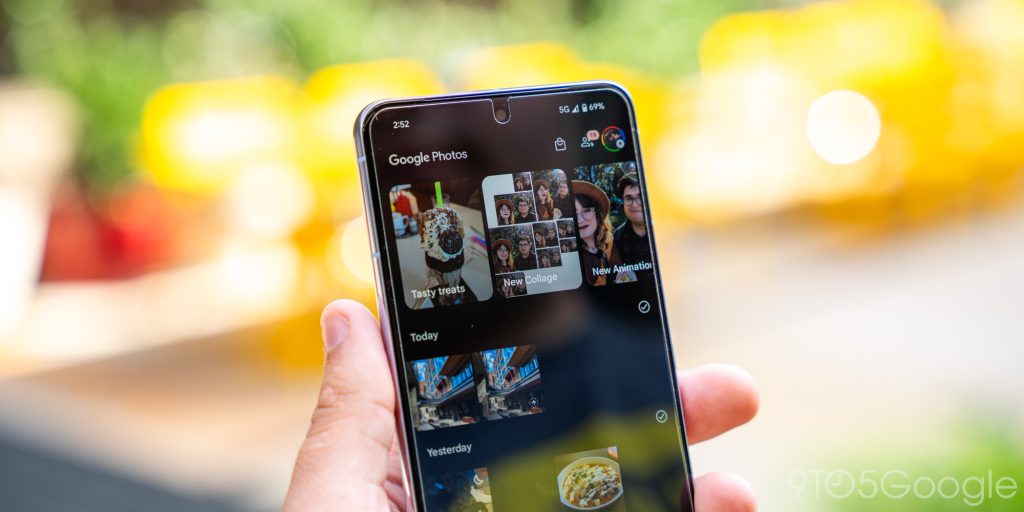
To do that, simply open the app, sign in with your preferred Google account, and decide on backup options. Photos will automatically backup your pictures and videos in the background, but you’ll need to tell it if you want that done over Wi-Fi only or on cellular data, as well.
From there, you’ll just need to decide on quality. Google offers full-resolution backup as well as a slightly compressed, data-saving option that will lose a bit of quality, but you’ll be hard-pressed to tell the difference. Plus, there are some killer features available with a Google One subscription, such as Magic Eraser and a ton of helpful editing features.
You’ll get 15GB of storage for free, with rates starting at $1.99/month for additional storage through Google One, which adds storage to not only Photos, but also Drive and Gmail.
Amazon Photos and more
Outside of Google, there are some other solid options for storing your photos. Amazon Photos has one of the best values, with unlimited photo storage for Prime customers, while OneDrive has affordable rates and a robust setup for both photos and files alike.
Upgrade your keyboard
Gboard
The keyboards pre-installed on a lot of today’s most popular Android smartphones are, well, not great.
While much of it comes down to personal preference, you can get more features and, in many cases, better functionality out of a different keyboard.
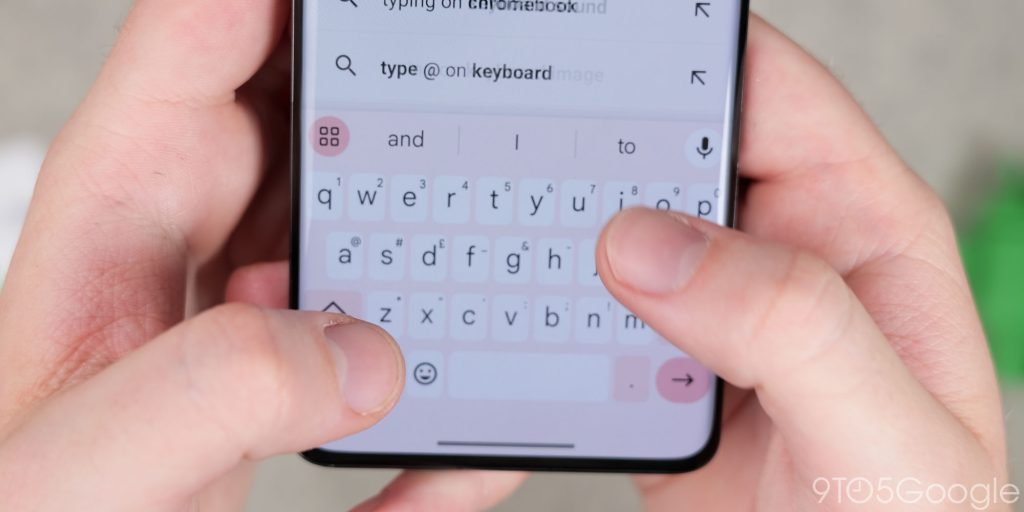
Our top pick? Google’s own Gboard. This keyboard has a great layout that’s comfortable for typers of all styles and supports features such as gesture/swipe typing, GIF search and input, and so much more. There are even unique features such as the “Emoji Kitchen,” which can create some wacky emoji stickers on the fly. You can also theme Gboard to your heart’s desire. There’s also a useful toolbar that you can customize!
Put simply, it’s an excellent keyboard that’s totally free, and if it wasn’t already on your phone (it’s not installed by default on Samsung Galaxy devices, for example), you should give it a try. Check it out on the Play Store.
SwiftKey and more
If Gboard isn’t quite your style, there’s another great option on the Play Store in the Microsoft-owned SwiftKey. This keyboard has been one of the most popular Android apps since the platform’s app store existed. Recently acquired by Microsoft, the app offers excellent gesture typing and features the neat trick of learning and adapting to your typing style and your spelling mistakes too. SwiftKey supports over 400 languages and is free. It even supports syncing your clipboard with Windows PCs.
Another keyboard you might like is Grammarly. It was popularized as a Chrome extension but works great on Android, too. The Grammarly keyboard for Android goes beyond basic spell check to offer grammar fixes and alternate phrasing to improve how you send texts and emails, and it also has some useful AI features too.
Don’t lose your phone or your data
Set Up Find Hub
Here’s another app that should already be installed on any new Android smartphone. Find Hub, formerly “Find my Device,” is a Google app designed to help you keep track of your smartphone should it be misplaced. If the app isn’t installed on your device for some reason, Find Hub is available via the Play Store.
When you open up Find Hub, you’ll be prompted to sign in with a Google account and enter your password, as well. Once that’s done, you’ll be able to see your device as well as any others attached to your account. You can then ring, lock, or wipe any device on your account. The same applies to your new phone as well as any other Android device you own, a friend’s Android phone, or even just a web browser. As a side note, the core functionality of actually finding your phone with this app is on by default in Google Play Services, but by using the app, you’ll get a bit more control as well as being able to find your other Android devices through the app as well as helping friends to find their phones.
The Find Hub app is also how you’ll use AirTag-like trackers designed for Android. These trackers can be accessed through the app and use a network of Android phones to help you find them if they’re lost. On Samsung devices, you’ll also want to set up SmartThings Find for similar functionality with Galaxy SmartTags.

Google One
If you do lose or break your phone, you don’t have to lose your data. That’s where Google One comes in handy. With any Google One storage plan (starting at just $2/month), you’ll get improved backups of your phone. By default, Android already backs up core data for free to your Google account, but the One app can back up SMS messages and MMS messages along with your photos and videos.
Backup (and transfer!) your SMS
If you’re still handling a lot of your messaging through SMS, it’s good practice to back that up. SMS Backup & Restore is a handy little client that can back up your SMS and MMS messages to Google Drive or other cloud storage for safekeeping, but the especially handy part is restoring messages. This can be useful as you set up a new phone or if you’re planning to make the switch later on.
Fitness & Health
Especially with the new year incoming, fitness and health are key. With Android, this is bolstered through the Health Connect service that, in the background on your device, can sync your health data between different apps. Some compatible apps worth trying include:
- MyFitnessPal: A simple and free tracker for food intake, very helpful for weight loss
- Nourish: This app not only makes it easy to track your food, but connects you with a registered dietian to improve your health and work towards your goals. It’s covered by most insurance in the US, and one I personally use
- Fitbit: While it’s mostly used for Fitbit devices and the Pixel Watch, the Fitbit app is a great hub for all of your health data, especially with its upcoming Gemini overhaul that’s designed to help coach you towards your goals.
Manage your money
Google Wallet – Manage tap to pay and more
Mobile NFC payments are super convenient, and setting them up on Android is easier than ever. Google Wallet is a free and quite simple app that lets you add credit/debit cards to your phone for NFC payments, as well as holding your loyalty cards, gift cards, airline passes, and so much more. It’s also working on adding support for driver’s licenses in select US States, many of which are now available.
Google Wallet is pre-installed on most Android devices, but you might have to manually download it on a Samsung device, for example. On Samsung devices, you can also use Samsung Pay for similar features.

Money transfer apps
Sending money has gotten a whole lot easier with apps, and there are some excellent choices to do so. Here are a few popular options.
- PayPal: The classic, PayPal is a great way to send money to your friends and family but is also super useful for online shopping as well as selling.
- Venmo & Cash App: Both using the same basic model, Venmo and Cash App are excellent apps for sending money between friends and family with usernames for sharing and easy linking to your bank. Plus, since they’re widely used, most folks are usually going to have at least one of these two.
These are preferable to Zelle, which you likely have linked to your bank account. While Zelle works well, it’s notorious for fraud to the point of an ongoing federal lawsuit, so perhaps be careful with that one.
The best note-taking Android apps
Google Keep
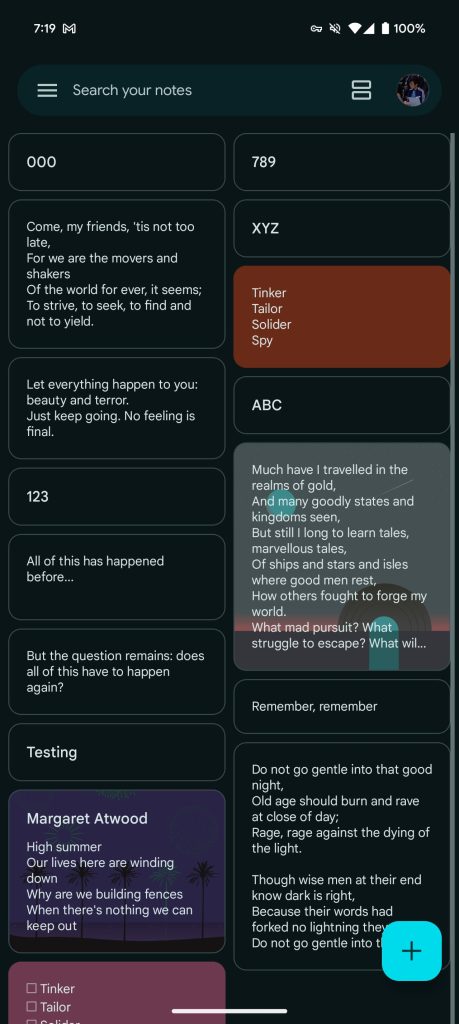
Keeping track of reminders, lists, and more can be made much easier by using a note-taking app. Personally, my favorite note-taking app on Android is Google Keep Notes, and it’s something that just seems to keep getting better over time.
Google Keep is completely free and lets you store notes, lists, and even drawings in the app. There are also some AI features that have been added recently. Notes are synced to your Google account, which means you can access them on any other device, including computers.

Other note-taking apps
If you want something that’s not from Google and has a few more advanced features, Microsoft OneNote is an excellent option. The app is completely free, though it works better with other Microsoft apps using a Microsoft 365 subscription. You can back up notes and drawings and insert pictures in the app, and like Google’s app, they’ll sync across devices with your Microsoft account. Other good options include Joplin, an open-source and multiplatform note-taking app, as well as Notion, a popular app that works across platforms and integrates some AI features.
Keep connected to your computer
Link to Windows
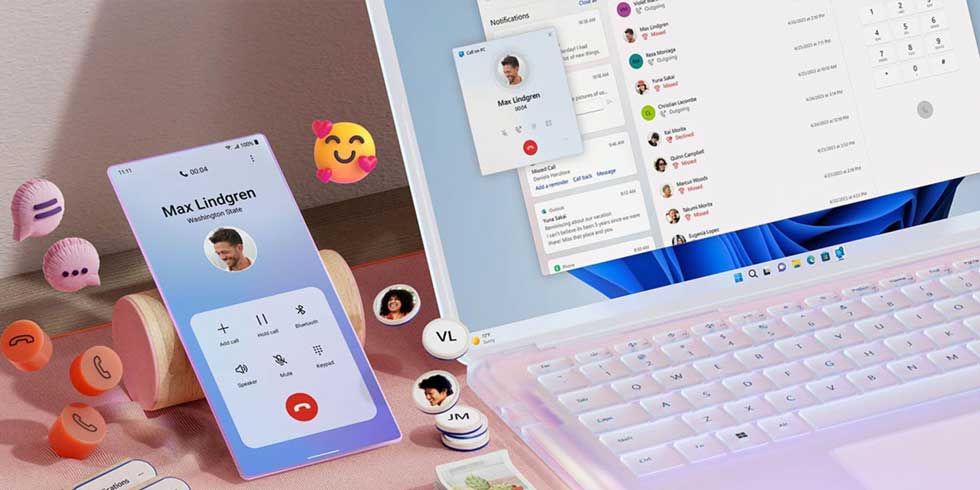
If you spend all day at a desk, it can be super convenient to keep your Android phone connected to your PC. With the Link to Windows app, that’s super easy.
After connecting, Link to Windows allows Android users to take phone calls on their PC, use messages, bring their notifications to their computer, and even access their photos and videos without hooking up any wires. You can even mirror Android apps from your phone up to your computer. Microsoft continues to build on the app and add new features and deeper integration with Windows.
Install Quick Share on your Windows PC too
If you do have a Windows PC, one app you’ll want to immediately set up is Quick Share. The AirDrop-like service is live by default on your Android phone, but the Windows app needs to be manually installed. Once it is, you’ll be able to exchange files back and forth from your phone, tablet, and PC all using the same native functionality.
Chrome Remote Desktop is simple, but always useful
The Chrome Remote Desktop app lets you connect to your computer wirelessly, and it’s dead-simple to set up. Install the app on your phone and on the Chrome browser on your PC of choice, link both to your Google account, and enable access from the PC. Boom, now you can connect from anywhere, no subscriptions or anything else needed. There are more versatile tools out there, but Chrome Remote Desktop is easy, simple, and completely free.
How to set up Chromebook Phone Hub
Alternatively, if you have a Chromebook, you can set up “Phone Hub.” This offers most of the same features as Link to Windows but further builds on it with support for setting up a hotspot and using your phone as a “key” to unlock your ChromeOS device. You don’t have to download anything to set up Phone Hub either, just follow the instructions below.
A few more noteworthy apps:
- Feedly: Want to keep track of the news using personalized RSS feeds? Feedly is one of the best apps for the job, and it’s free!
- Google Home/Amazon Alexa: Got some smart home speakers or displays? You’ll want to have the Google Home or Amazon Alexa apps installed, depending on what devices you own.
- Kinestop: This free app allows users to start a visual overlay on Android that reduces motion sickness when using your smartphone while in a car or while otherwise moving.
Follow Ben: Twitter/X, Threads, and Instagram
Last update: 12/25/2025


FTC: We use income earning auto affiliate links. More.