For most people, the Linux terminal is where you troubleshoot issues or run sudo commands—not a place where you do your day-to-day work. I used to think the same way until I stumbled into the world of TUI (Terminal User Interface) apps—terminal-based tools with real interfaces. I tried a few, and while most didn’t stick, these five did. In fact, they’re so good they’ve replaced several graphical desktop apps I used before.
Yazi
The file manager that makes keyboard navigation feel natural
Yazi is a terminal-based file manager built around the Miller columns layout. Instead of showing a single directory at a time, it displays three columns simultaneously—the parent directory on the left, your current directory in the middle, and a preview of the selected item on the right. This ensures that as you navigate, you always have context for where you came from and what you’re looking at.
It’s written in Rust with async I/O, which translates to blazing-fast navigation even in directories with thousands of files. File previews also render quickly—including images, provided your terminal supports it.
To launch it, simply type yazi in the terminal, and it will open in your current working directory. You can move through directories using the arrow keys or Vim-style h-j-k-l, press Space to select files, y to copy, p to paste, and d to delete. There’s also ripgrep-powered search built in if you need to find something quickly. You can find all the default keybindings on its official GitHub page.
The main thing you give up is mouse-based drag-and-drop. If your workflow depends on moving files between graphical apps visually, Yazi won’t help you there. But if you’re already comfortable navigating with a keyboard, that trade-off doesn’t matter much.
I started using Yazi as a deliberate experiment. I wanted to get more comfortable in the terminal, but I also hated tab-completing cd and ls just to figure out where to go. Yazi solved that, and it stuck—I haven’t opened a graphical file manager since.
5 popular Linux terminal-based file managers—ranked
Five tools that do the same thing but with completely different workflows.
btop
A system monitor that shows you more while costing you less
btop, a.k.a., btop++, is a terminal-based system resource monitor. It shows CPU usage per core, RAM, disk read/write speeds, network activity, and a full process list—all on one screen, with real-time graphs. If you’ve used htop, think of btop as its inevitable evolution—written in C++, faster, and far more informative at a glance.
Using btop is straightforward. Launch it with the btop command, navigate the process list with the arrow keys or h-j-k-l, press F to filter by process name, Enter to expand a process, and K to kill it. The number keys (1–4) toggle individual panels if you want to focus on a specific metric.
What pushed me to make it my default came down to two things.
First, system monitors that ship with most desktop environments tend to look dated and offer limited detail—you get CPU, RAM, and maybe a basic process list. btop gives you a much more complete view.
However, more importantly, there’s something ironic about using a graphical app to monitor system resources, since that app itself contributes to resource consumption. By comparison, btop’s footprint is negligible, making it a far more practical resource monitor.

Here’s why btop++ became my favorite Linux terminal resource monitor
It’s modern, intuitive, and leagues ahead of the competition.
Calcurse
Not the calendar I expected to like, but probably the best one I’ve used
Calcurse is a terminal-based calendar app with a three-panel layout: a full-length appointments list on the left, and on the right, a monthly calendar at the top with a to-do list below. You can manage both appointments and tasks directly from within the app. All data is stored in ~/.local/share/calcurse/ as plain-text files with a special, albeit intuitive, syntax.
To launch it, type calcurse in your terminal. Press Tab to move between panels. Once you’re in the panel you want, press a to add a new item—for appointments, select a date from the calendar, then tab over to set the time, duration, and description. Press r to make an event recurring, and d to delete it. If you ever get lost, press ? to open the built-in help.
A calendar app is crucial to my workflow, but I’ve never liked the default options that ship with most distros. I find GNOME Calendar too minimal, while KOrganizer is too busy and overcomplicated. Calcurse, despite being a terminal app, offers the best interface I’ve used. It also loads instantly, and once you learn the shortcuts, adding new events becomes genuinely fast.
The main caveat is sync. There’s experimental CalDAV support if you want to connect Calcurse to something like Nextcloud Calendar, but it requires manual setup and isn’t plug-and-play. Personally, I don’t need my desktop calendar synced with Google Calendar—I use it only for events that are relevant while I’m at my workstation. That separation helps keep work and personal life from bleeding into each other.
Because everything is stored as plain text, it’s easy to automate and manipulate. I’ve given Claude Code access to the Calcurse data files directly, so it can read my existing events or create new ones based on natural language commands. You could do the same with any AI tool that has file system access.
Taskwarrior
The task manager that gets out of your way and lets you add things quickly
Taskwarrior is a command-line task management system. Tasks are stored locally as JSON files, and you interact with everything through short commands. It supports priorities, due dates, tags, and projects. Here’s how it works:
- Type task add Buy groceries to create a task
- Type task to see your list sorted by urgency
- Type task 2 done to mark a task complete
- Type task 2 delete to remove it
- Add a priority with priority:H
- Set a due date with due:eom (end of month) or due:monday
- Group tasks under a project with project:Writing
Taskwarrior automatically calculates an urgency score for each task based on these factors and sorts your list accordingly, so high-priority, overdue tasks float to the top without you having to think about it.
What I love about Taskwarrior is how quickly it lets me capture new tasks. All I need to do is press Ctrl+Alt+T to open the terminal, type task add {task_item}, and I’m done. It’s much faster than opening a graphical app, finding the right list, clicking Add, and typing the task. That added friction with graphical apps was often enough to stop me from creating a task—and then forgetting it moments later. With Taskwarrior, that’s no longer an issue.
Taskwarrior offers a lot of powerful options, but if you dive in too quickly, it can feel overwhelming. Start with add, done, delete, and task next, then expand from there as needed.

4 productivity apps on Linux that replaced my favorite web apps
They’re all local, more secure and private, and completely free.
Wordgrinder
This is a word processor for your terminal
Wordgrinder is a word processor that runs entirely in the terminal. It supports basic paragraph styles like headings and body text, character styles like bold and italic, word count, a spellchecker, and export to HTML, Markdown, and ODT.
You launch it with wordgrinder, which drops you straight into the word processor. From here you can press ESC to open a menu with everything you need, so you don’t have to memorize shortcuts upfront. Ctrl+S saves, Ctrl+B and Ctrl+I handle bold and italic, and paragraph styles are just a few keystrokes away through the Style menu. Wordgrinder saves your work in its own .wg format, which works more like a container than a single document—you can store multiple documents inside one file, which is useful for keeping related writings together.
I’ve only been using Wordgrinder for about a week at the time of writing, so I can’t speak to long-term reliability. I tried it out of curiosity, but I’ve grown to like it a lot—especially how quickly it drops me straight into the editor compared to something like LibreOffice, which can take a few seconds to launch.
That said, I wouldn’t call it a replacement for LibreOffice—especially if you need complex formatting, tables, or files you plan to share in standard formats. But for writing or editing simple documents that stay on your machine, it’s hard to beat something this fast and minimal.

4 Open-Source Writing Apps That Can Replace Microsoft Word
There are other options out there that are just as good as Word.
Terminal apps have a charm of their own
TUI apps aren’t for everyone, and they don’t have to be. In fact, I didn’t set out to rebuild my workflow around the terminal—it just happened. But now that I have, I’d recommend you give these five a try, especially if you like the minimal aesthetic. Who knows—you might find a few of them sticking around longer than expected.

8/10
- Operating System
-
Kubuntu 24.04 LTS
- CPU
-
Intel Core Ultra 9 275HX (2.7GHz up to 5.4GHz)
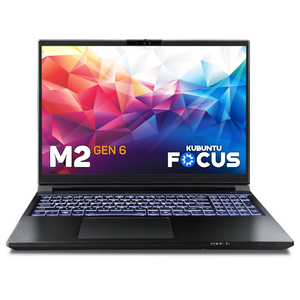
This laptop is purpose-built for developers and professionals who want a Kubuntu Linux-powered portable workstation and gaming platform. It features an Intel processor capable of hitting 5.4GHz and both integrated graphics and a dedicated NVIDIA 5070 Ti GPU for when you need extra power for machine learning or games.